

MILBOX-ORNX Getting Started
WHAT YOU WILL LEARN?
1- Overview of MILBOX-ORNX
2- Power Socket & Polarization
3- Jetpack Installation and Interface Guide
ENVIRONMENT
MILBOX-ORNX is a high-performance ultra-compact embedded rugged computing solutionfor NVIDIA Jetson Orin Nano and Orin NX SoM modules. We will explain how to get started with MILBOX-ORNX on this blogpost.
Overview of MILBOX-ORNX
You can see the front view of MILBOX-ORNX.
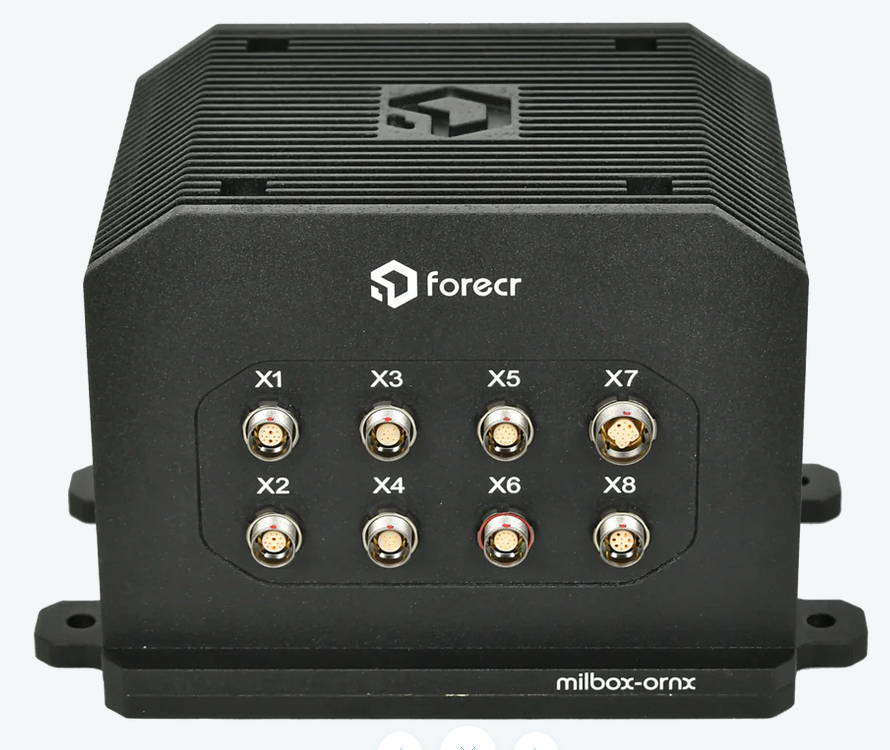
Before you plug in DC power cable, you should plug in Ethernet cable, keyboard and mouse USB cables to USB ports, HDMI cable to HDMI port socket for monitoring the system.
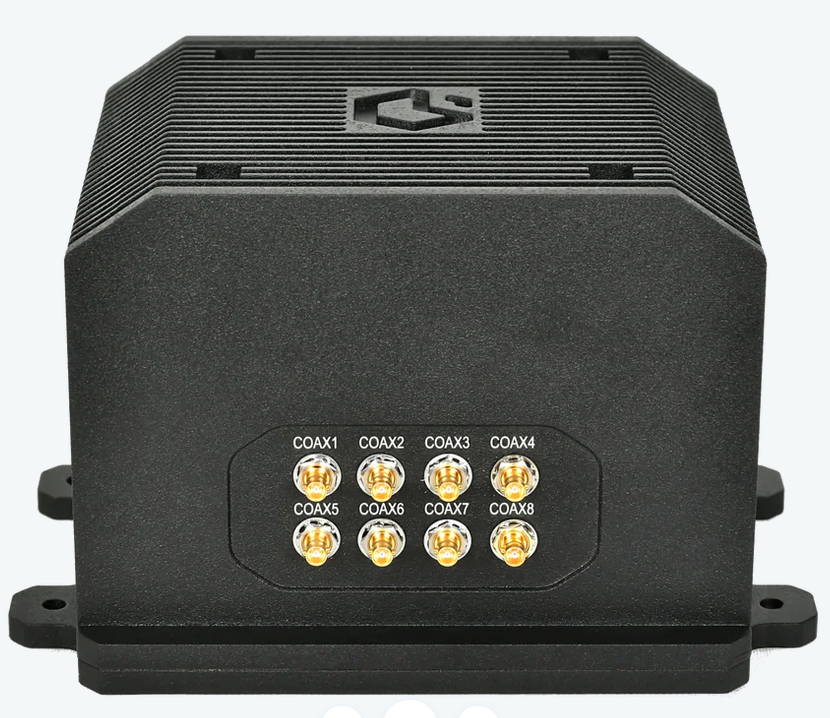
Power Socket & Polarization
After connections are done, you can plug in the DC power cable to “X8” socket. The system runs as soon as you plug the DC power cable. The DC Power Source should be in the range of 9-40 Volt DC. You can find the DC Power socket when you open the package of the product.
You can see the power connector pinout below.
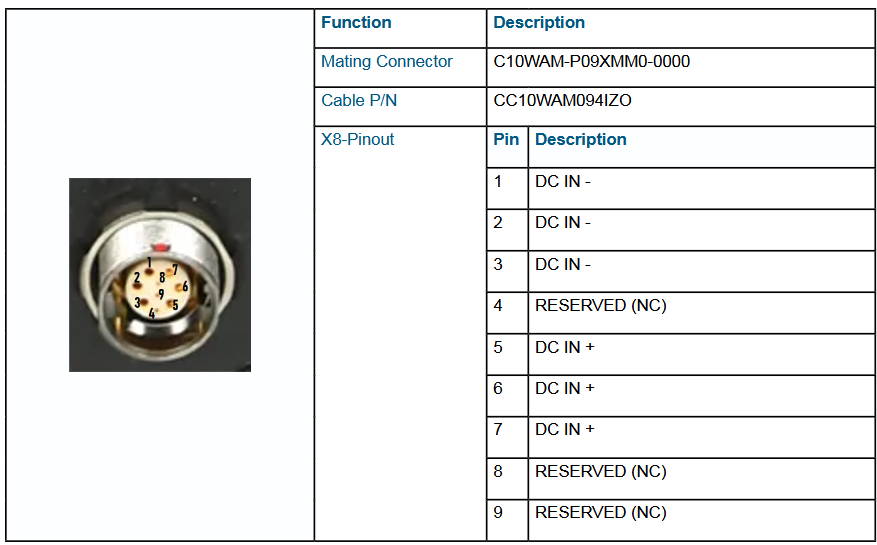
You can have DC Power Adapter, HDMI Cable and Ethernet Cable as optional.
JetPack Installation & Interface Guide
After you energize the board, the system runs. The industrial box pc has preinstalled operating system (Ubuntu 20.04 or 22.04). When the Ubuntu Desktop show up, you will need to user name and password. Both the user name and the password are “nvidia”.
If you would like to view the definition of each connector, please click here.
If you would like to upgrade or downgrade the software version, please click here (for JetPack-6) or here (for JetPack-5).
If you would like to use serial communication interfaces (RS232,RS422 and RS485), please click here.
If you would like to use CANBus interface, please click here.
Need a rugged system for AI at the edge? Explore our full range of rugged sytems — built for demanding environments such as railway, defense, and industrial applications delivering supercomputer-level performance with NVIDIA Jetson AGX Xavier™, AGX Orin™, Orin™ NX, and Orin Nano, including Super Mode support for Orin NX and Nano.
Thank you for reading our blog post.
