

JetPack-7.x Installation for MILBOX-THR
WHAT YOU WILL LEARN?
2- Installing the Jetson OS
3- Installing the Jetson SDK Components
In this tutorial, we will install JetPack-7 for MILBOX-THR. First, we will include our Image, DTB & pinmux files in Jetson OS image. Then, we will install the Jetson OS into the MILBOX-THR. Finally, we will install the Jetson SDK components into it.
Including the Kernel Files in Jetson OS Image
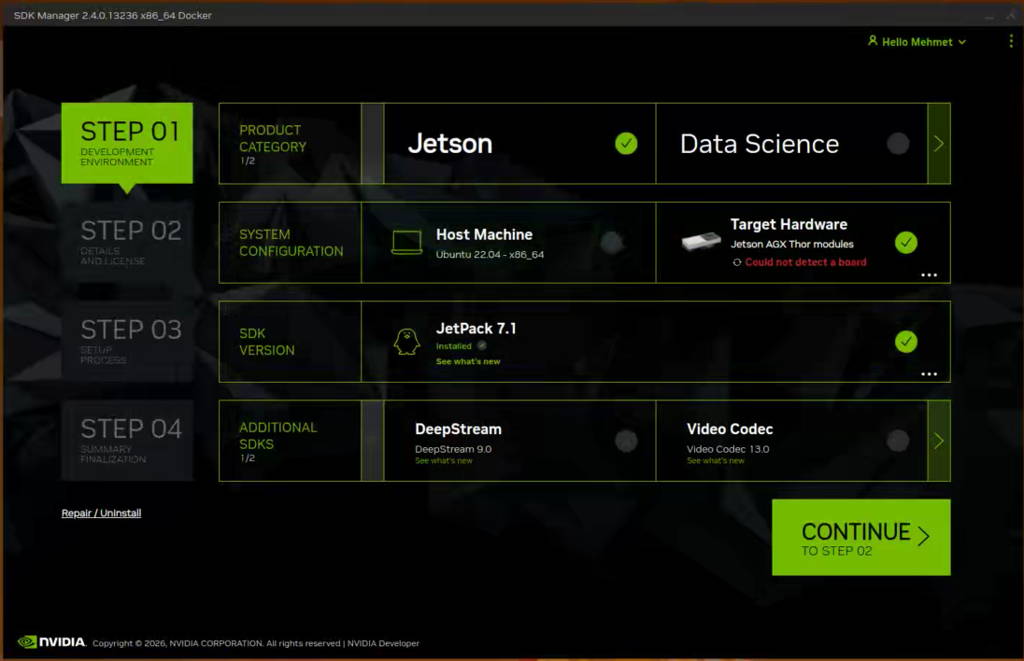
Open the NVIDIA SDK Manager. Select the correct JetPack version for Target Operating System and “Jetson Thor modules” for Target Hardware (The “Host Machine” components are not required).
Then, continue to Step 2.
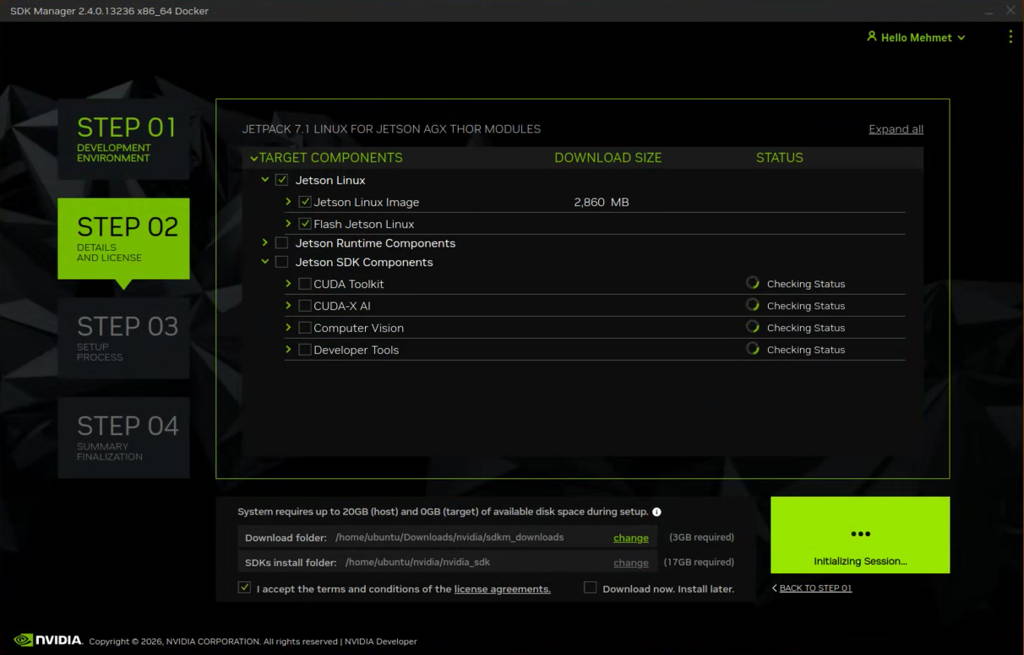
Choose only “Jetson Linux”, accept the terms & conditions and continue to Step 3.
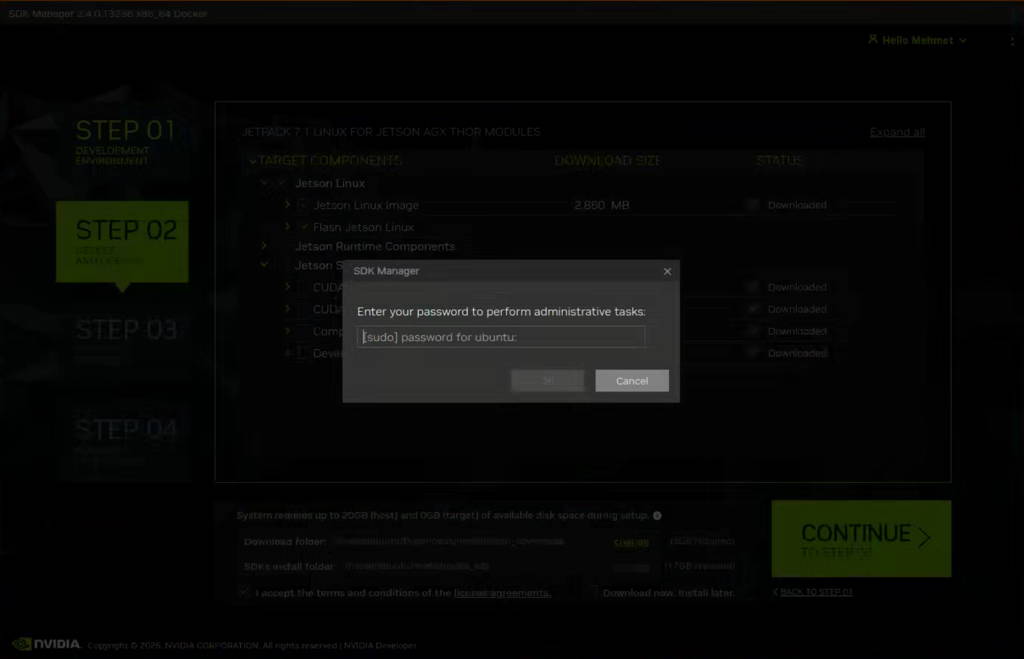
The SDK Manager will ask the username’s password. Fill it and continue.
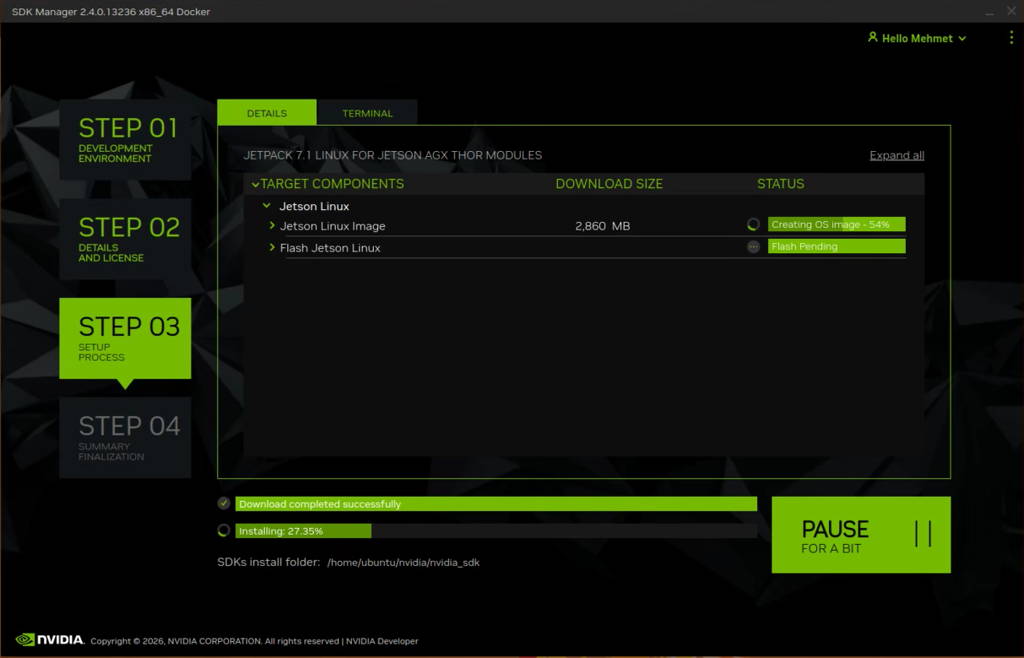
After the Jetson OS has created, the SDK Manager asks the Jetson module’s flashing style. Just skip it and exit from the SDK Manager.
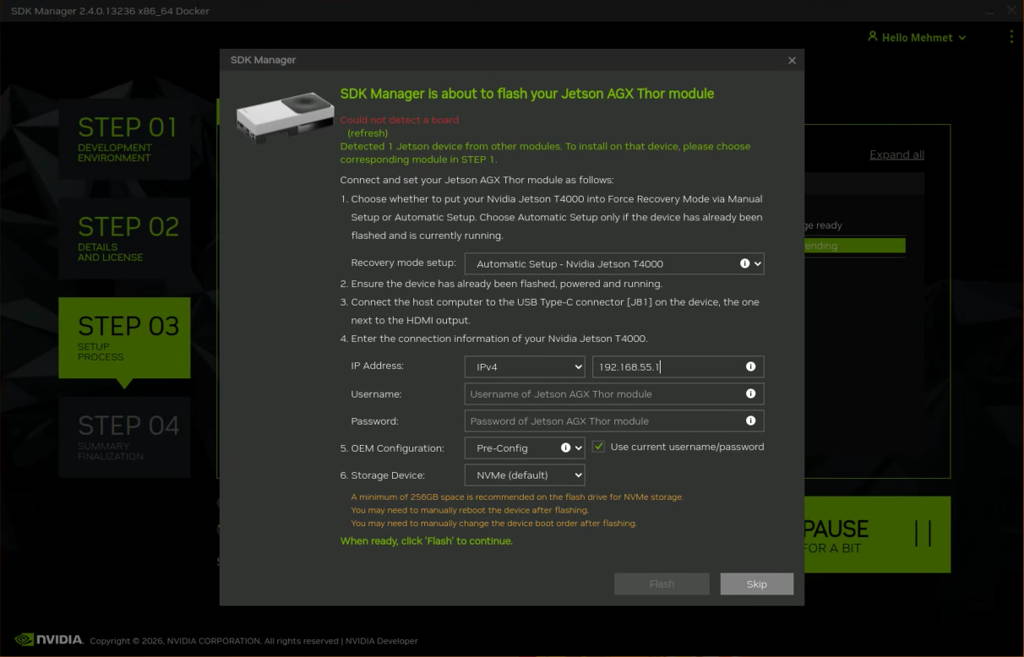
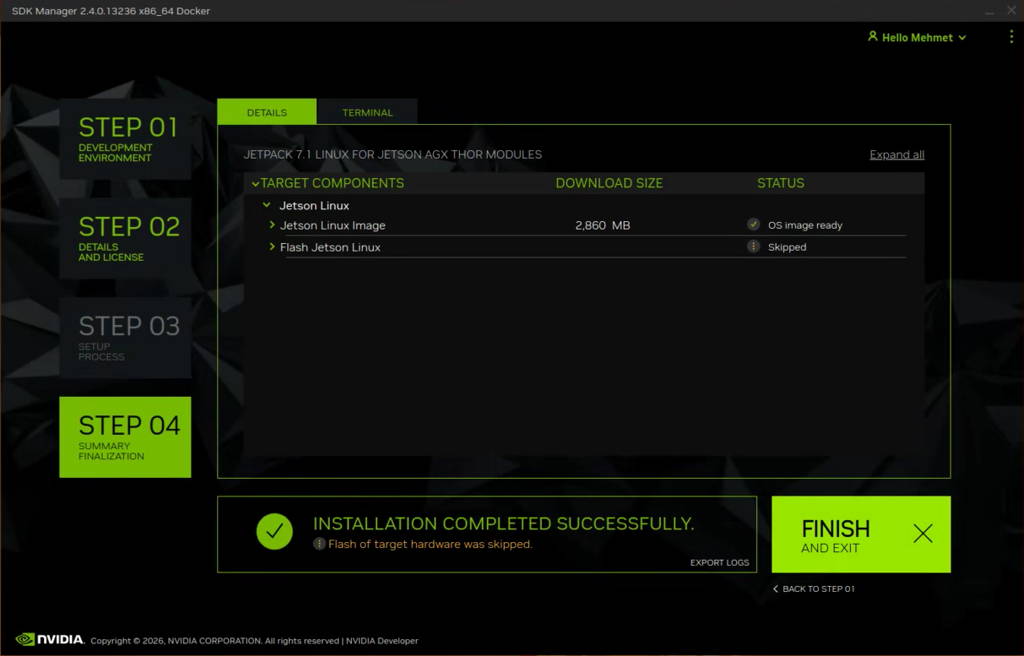
Open the target HW image folder.
For JetPack-7.0
T5000 or T4000: ~/nvidia/nvidia_sdk/JetPack_7.0_Linux_JETSON_AGX_THOR_DEVKIT/
T5000 or T4000: ~/nvidia/nvidia_sdk/JetPack_7.1_Linux_JETSON_AGX_THOR_DEVKIT/
T5000 or T4000: ~/nvidia/nvidia_sdk/JetPack_7.2_Linux_JETSON_AGX_THOR_DEVKIT/
T5000 or T4000: ~/nvidia/nvidia_sdk/JetPack_7.2.1_Linux_JETSON_AGX_THOR_DEVKIT/
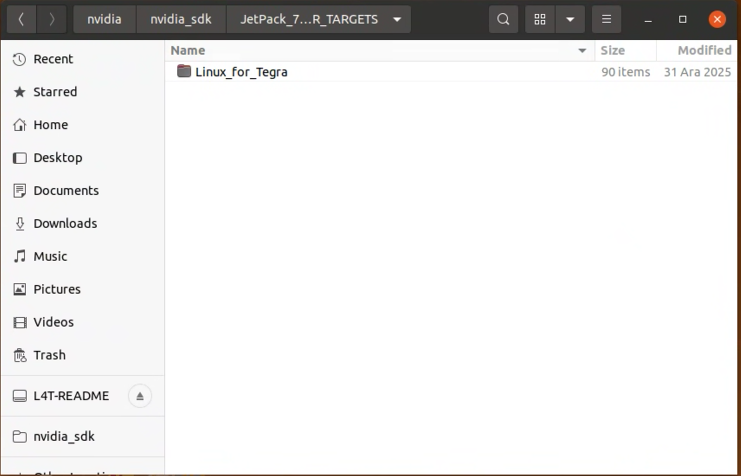
Download the BSP files from GitHub link and extract it (T5000 & T4000)
Download the BSP files from GitHub link and extract it (T5000 & T4000)
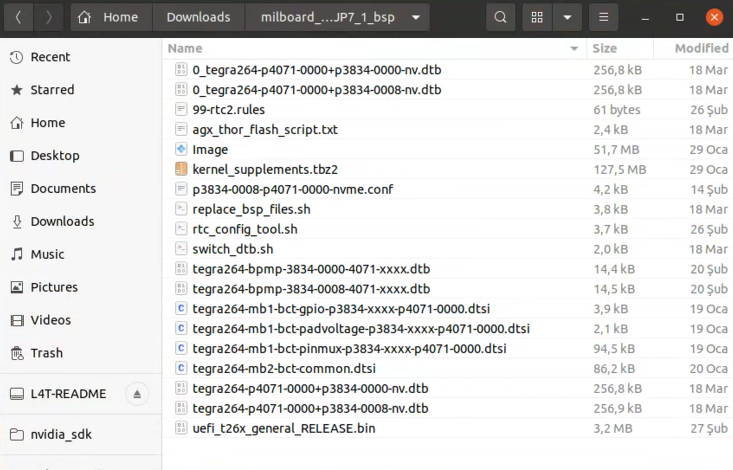
Copy all files to the target HW image folder.
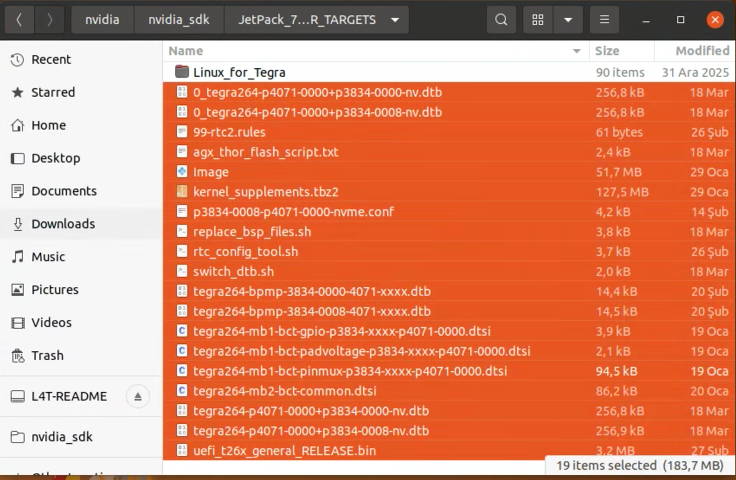
Open a Terminal in the “Linux_for_Tegra” folder.
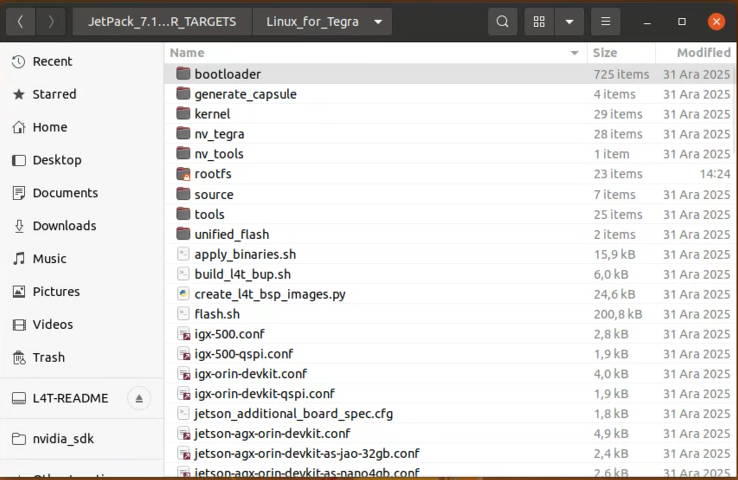
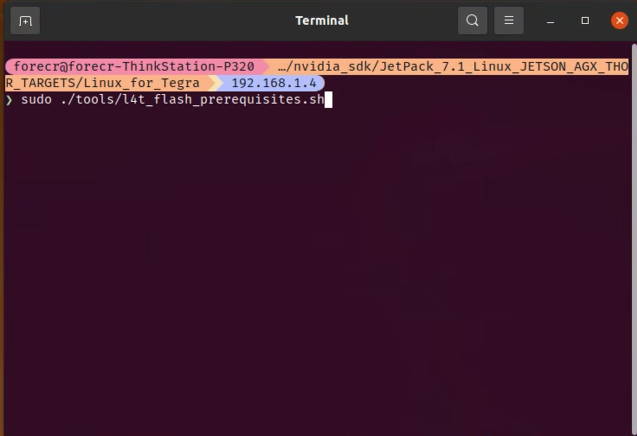
Create the system binaries with these commands below:
sudo ./tools/l4t_flash_prerequisites.sh
sudo ./apply_binaries.sh --openrm
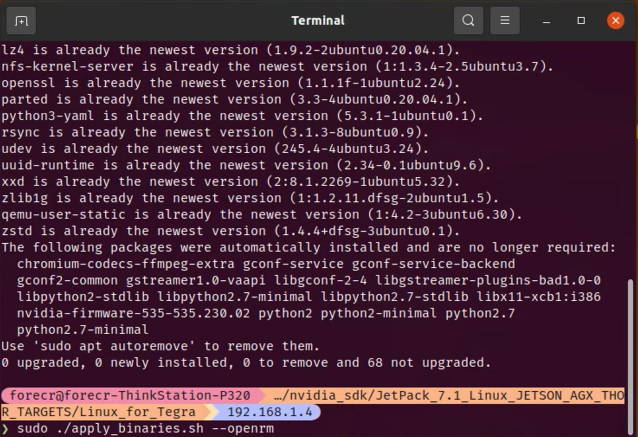
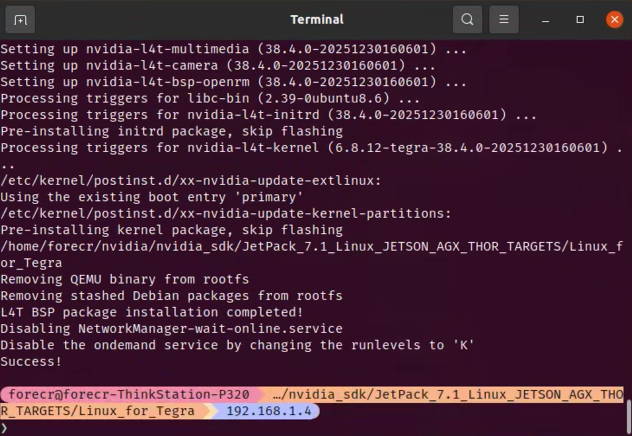
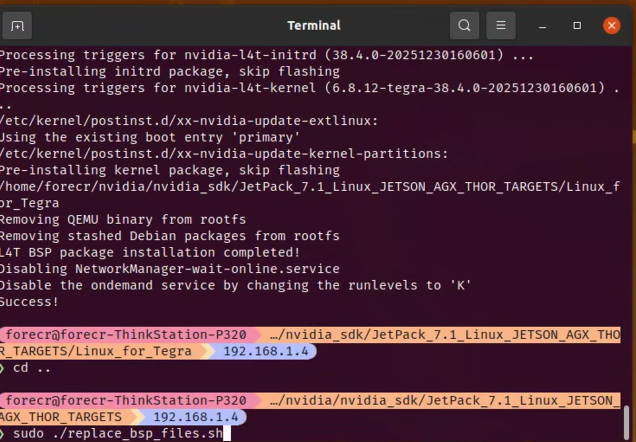
Apply the new BSP files and interface configurations with the following commands below:
cd ..
sudo ./replace_bsp_files.sh
cd Linux_for_Tegra/
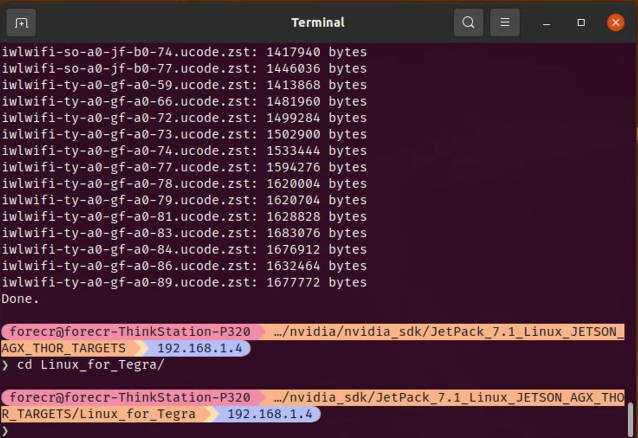
Hint: If you want to configure your username-password & hostname with default settings, you can create user without the Ubuntu installation wizard. To do this, the user generation command structure should be:
sudo tools/l4t_create_default_user.sh -u {USERNAME} -p {PASSWORD} -a -n {HOSTNAME} --accept-license
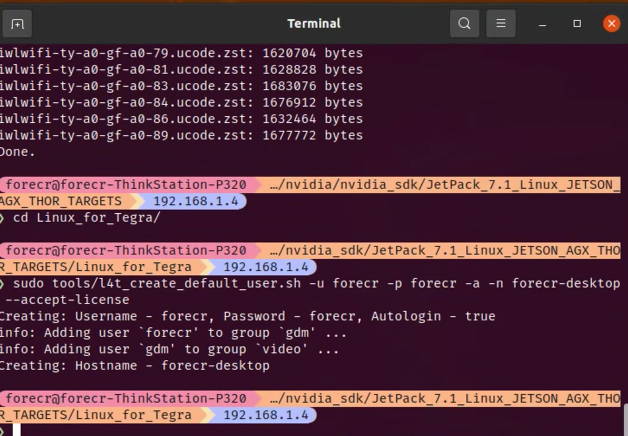
For example (username:"forecr", password:"forecr", device-name:"forecr-desktop"):
sudo tools/l4t_create_default_user.sh -u forecr -p forecr -a -n forecr-desktop --accept-license
Jetson OS Installation
While the MILBOX-THR's power connector plugged in,
• connect reset & recovery pins with ground (GND) pin together
• remove the reset pin
• remove the recovery pin on ground (GND) pin after 3 seconds later. This will set it to Recovery mode.
Attention: To be able to get more stable USB connection, please do not connect the Jetson via a USB hub or docking station to the host PC. Use a USB cable to the host PC directly.
Then, type “lsusb” and check the device connected in Recovery mode.
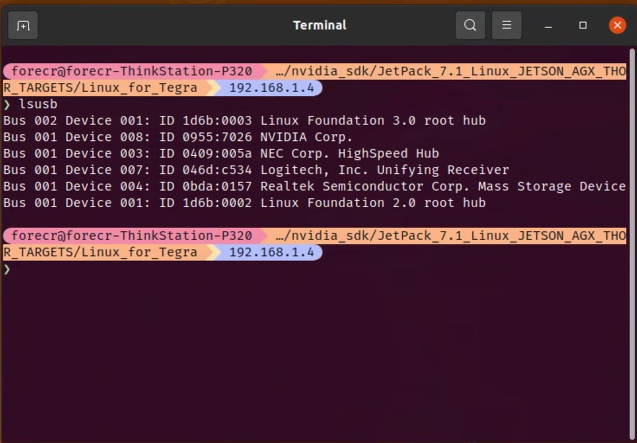
For T5000 module, flash the Jetson OS with this command below:
sudo ./l4t_initrd_flash.sh jetson-agx-thor-devkit internal
For T4000 module, flash the Jetson OS with this command below:
sudo ./l4t_initrd_flash.sh jetson-agx-thor-t4000 internal
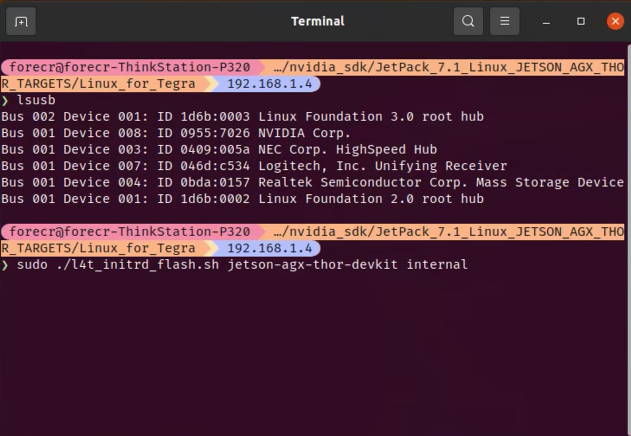
At the end of the script, reboot the device manually. Complete your Ubuntu installation wizard (if you have not created a user with tools/l4t_create_default_user.sh script file) from the MILBOX-THR (language, keyboard type, location, username & password etc.).
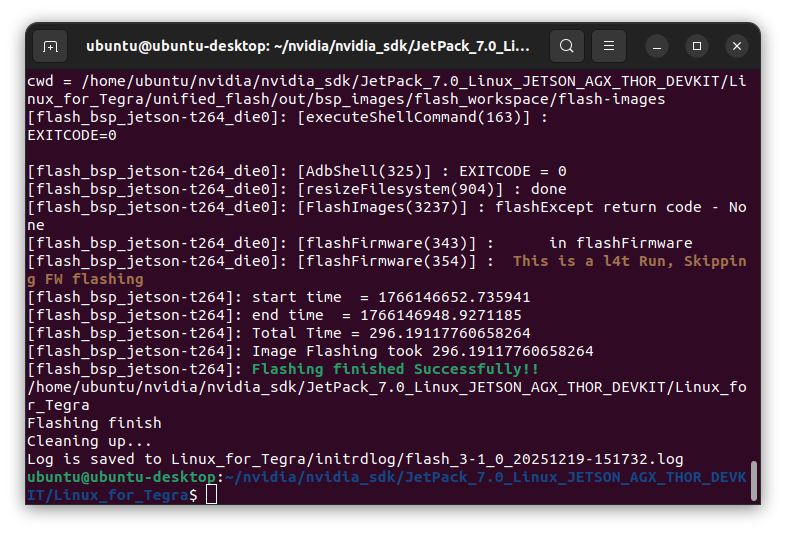
Jetson SDK Components Installation
Connect the MILBOX-THR to the Ethernet. Then, open the NVIDIA SDK Manager. Select the correct JetPack version for Target Operating System and “Jetson AGX Thor modules” for Target Hardware (The “Host Machine” components are not required. Additional SDKs (DeepStream) are optional).
Then, continue to Step 2.
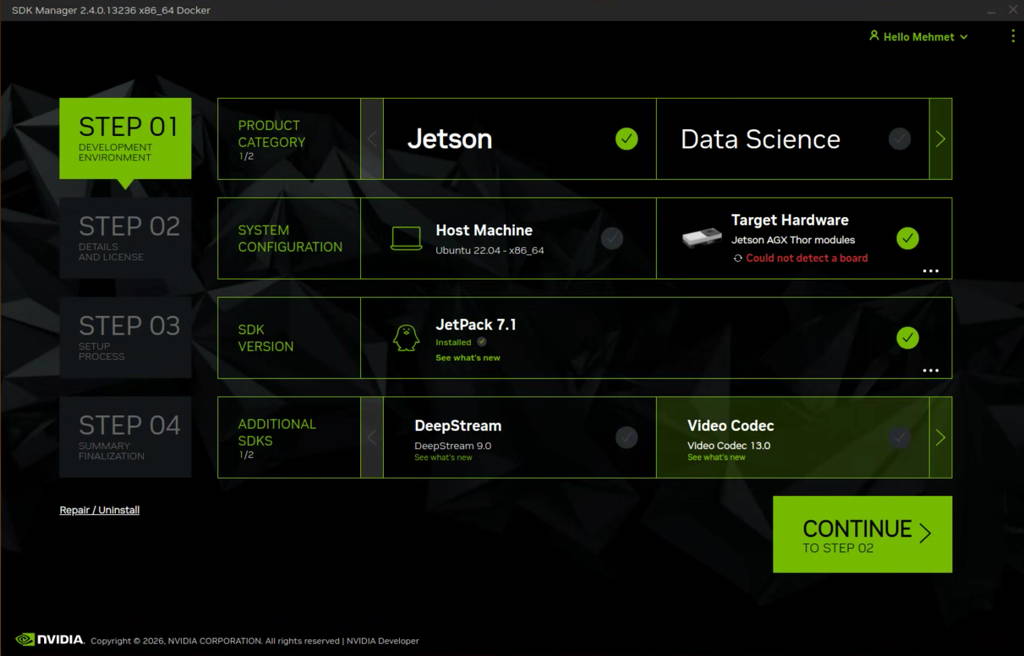
Choose at least “Jetson Runtime Components” (“Jetson SDK Components” are optional. It depends on your use case), accept the terms & conditions and continue to Step 3.
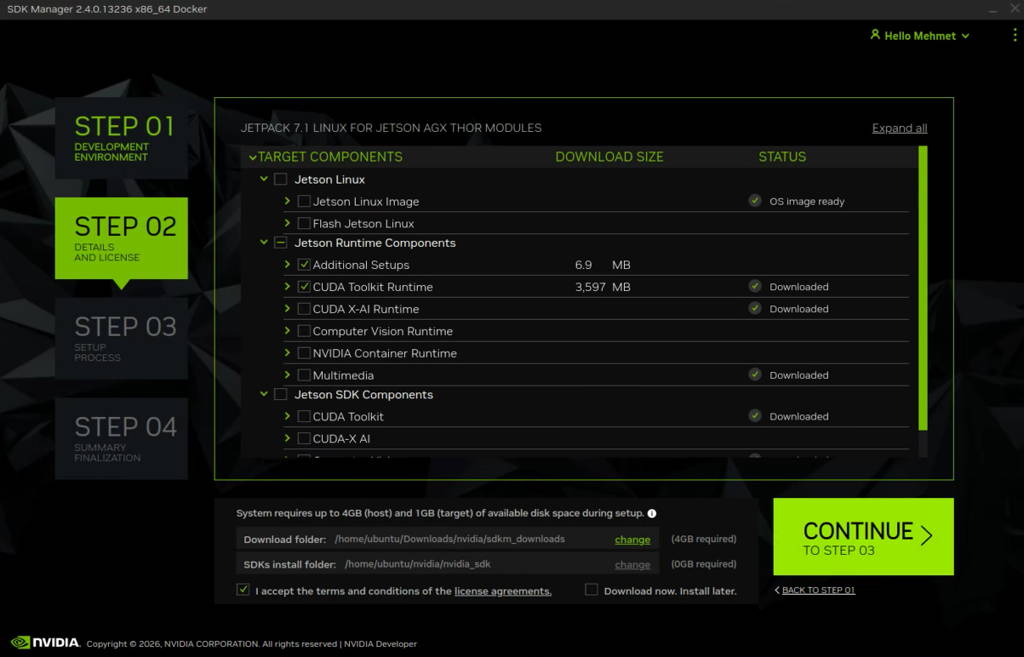
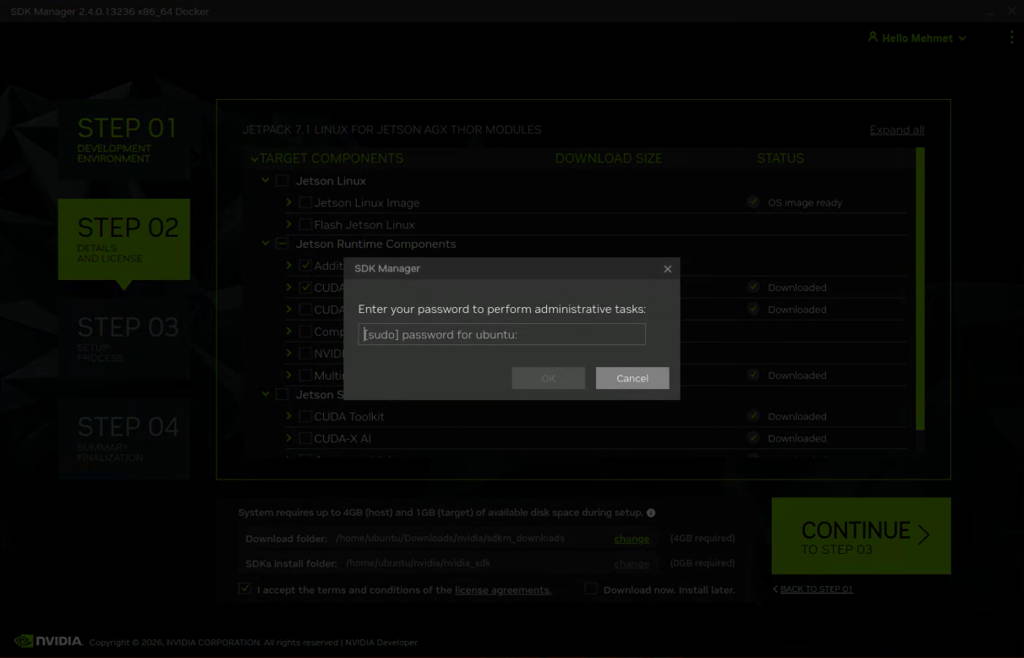
The SDK Manager will ask the username’s password. Fill it and continue.
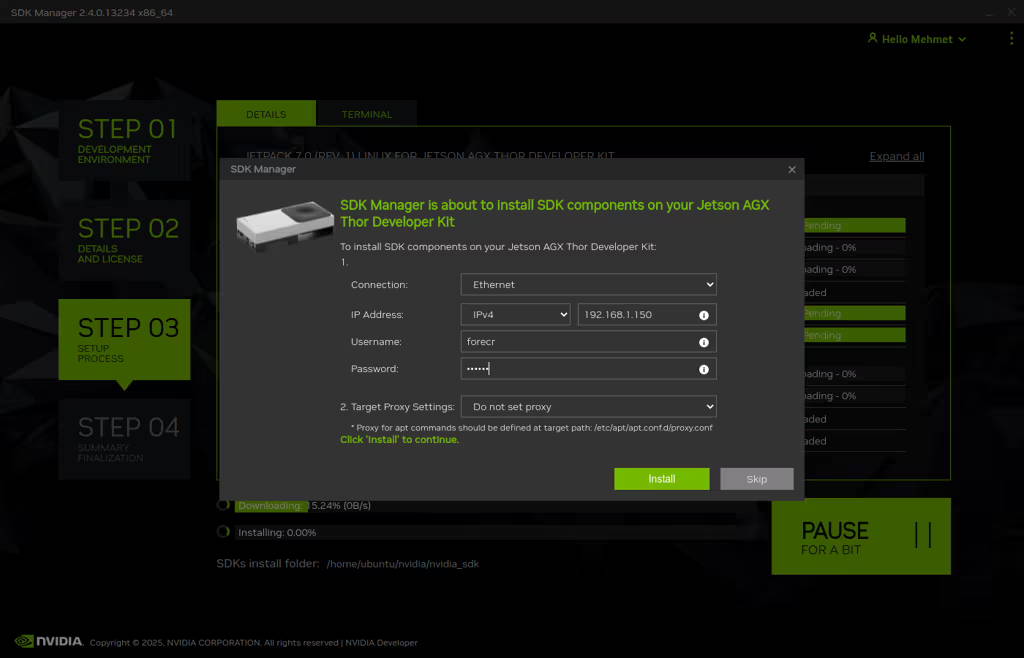
Type the IP address, username and password of Jetson Thor module and install the SDK Components.
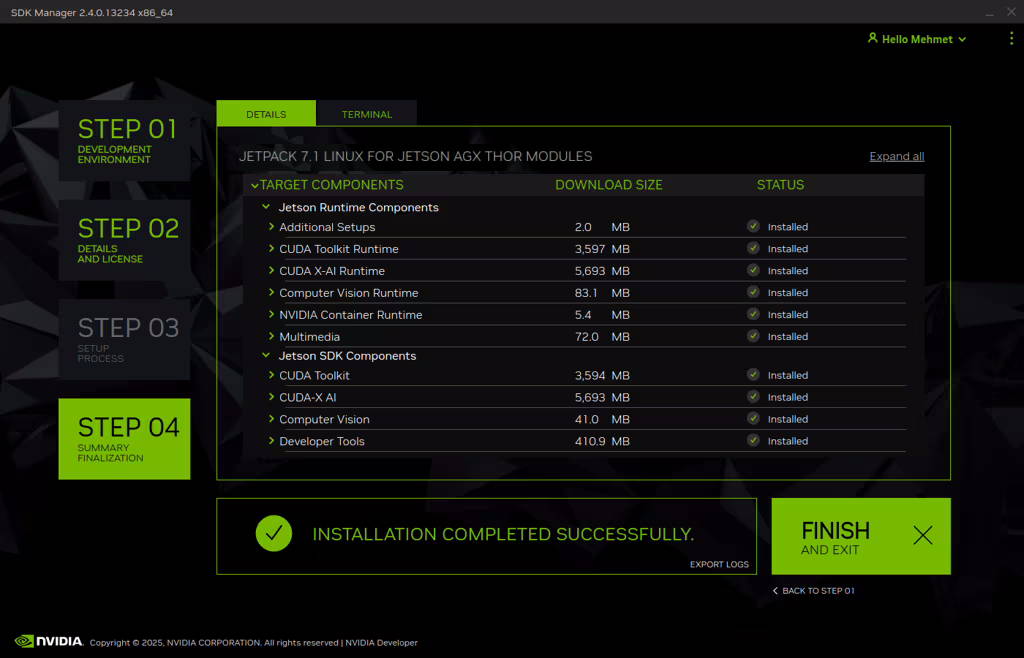
At the end of the installation, the MILBOX-THR becomes ready.
To avoid kernel update with "apt upgrade" or "apt-get upgrade" commands, please follow this guide on the Jetson module.
Thank you for reading our blog post.
